Short answer: if your phone is dead, left behind or broken, none of the "mirroring" solutions (Google Messages for web, Phone Link on Windows, Messages on Mac) will work: they all relay messages through the device, which has to be switched on and connected. That leaves three routes: an online text-sending website from your computer, an internet messaging app if the recipient uses one, or somebody else's phone.
It's an unpleasant discovery, and it always comes at the worst possible moment: you're sitting at a computer, you need to tell someone you'll be an hour late, and your phone is still on the living-room table. You open messages.google.com/web, you see the QR code page — and then it dawns on you that the QR code has to be scanned by the phone that isn't there.
This article sorts the methods by what they actually require from the device, explains what to do in the three common situations (dead battery, phone absent, phone broken), and above all how to prepare before the problem happens.
Why do "from my PC" solutions need the phone?
Because they don't send anything themselves: they display on the computer screen what the phone is doing, and pass your commands along to it.
It's a distinction you never notice while everything works, and that becomes central the moment the device is missing. There are two very different technical families:
Mirrors (or pairing bridges). The computer acts as a remote keyboard and screen. The text really does leave from your number, uses your plan, and shows up in the phone's message history. But the phone must be switched on, unlockable, and reachable over the internet or via Bluetooth.
- Google Messages for web: pairing by QR code from the Google Messages app on Android. The phone has to stay connected to the internet; Google states that the session disconnects after a period of inactivity.
- Phone Link (formerly "Your Phone"): the app built into Windows 11 pairs with an Android phone, and for a few versions now with an iPhone too, with limitations on group conversations and attachments.
- Messages on Mac: non-iMessage texts arrive and leave via the iPhone's "Text Message Forwarding" feature, which requires the phone to be switched on and on the same Apple account.
Online sending services. Here the computer talks directly to an SMS gateway, which injects the message into the carrier networks. The phone plays no part at all. That's the mechanism described in our article on how sending a free text online works: no SIM card, no pairing, no battery.
| Method | Phone required? | Sent from your number? | Cost |
|---|---|---|---|
| Google Messages for web | Yes, on + internet | Yes | Your plan |
| Phone Link (Windows 11) | Yes, on + paired | Yes | Your plan |
| Messages on Mac (SMS) | Yes, iPhone switched on | Yes | Your plan |
| Online text-sending website | No | No (service number) | Free or paid |
| Internet messaging (WhatsApp, Signal…) | No if the web version is already linked | Account, number not visible | Free |
The conclusion is blunt but useful: anything that shows your usual conversations depends on the phone. The moment it's missing, you have to switch families.
What if the phone has simply run out of battery?
Plug it in and wait: that's almost always the fastest fix. An Android or an iPhone connected to a decent charger becomes pairable again within a few minutes, long before it's fully recharged.
Three practical points:
- A phone at 0% isn't dead. It generally needs two to five minutes of charging before it will agree to boot. Don't try switching it on every thirty seconds: each failed attempt burns through what it has just stored.
- Charger power changes everything. Plugged into an old USB port on a laptop, a flat phone can take a quarter of an hour to restart. A 20 W or higher USB-C wall charger gets it back on its feet far faster — keeping a fast USB-C charger in your laptop bag avoids exactly this situation.
- Don't count on pairing while it's restarting. Google Messages for web only picks the session back up once the app has relaunched and reconnected to the network.
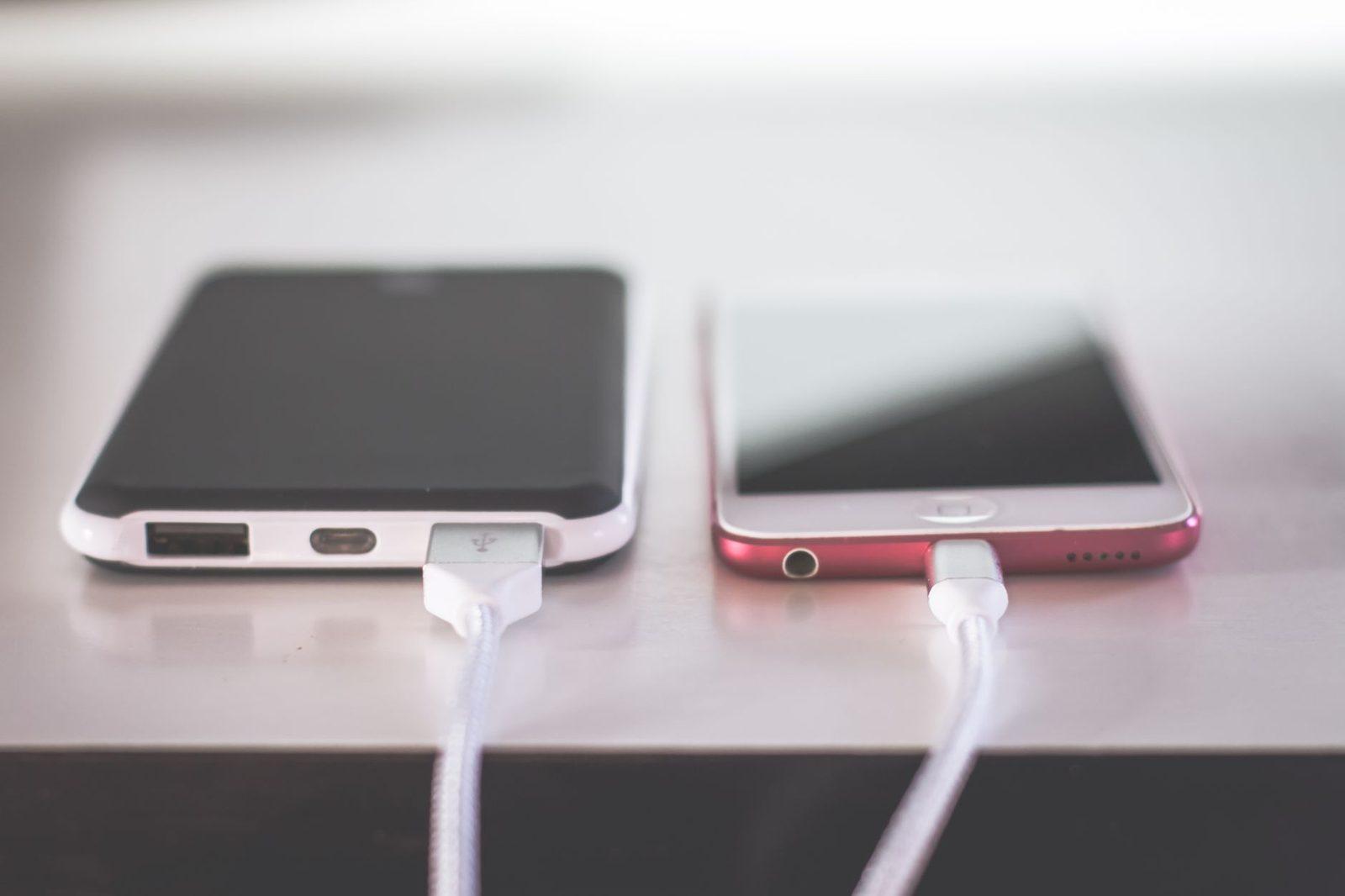
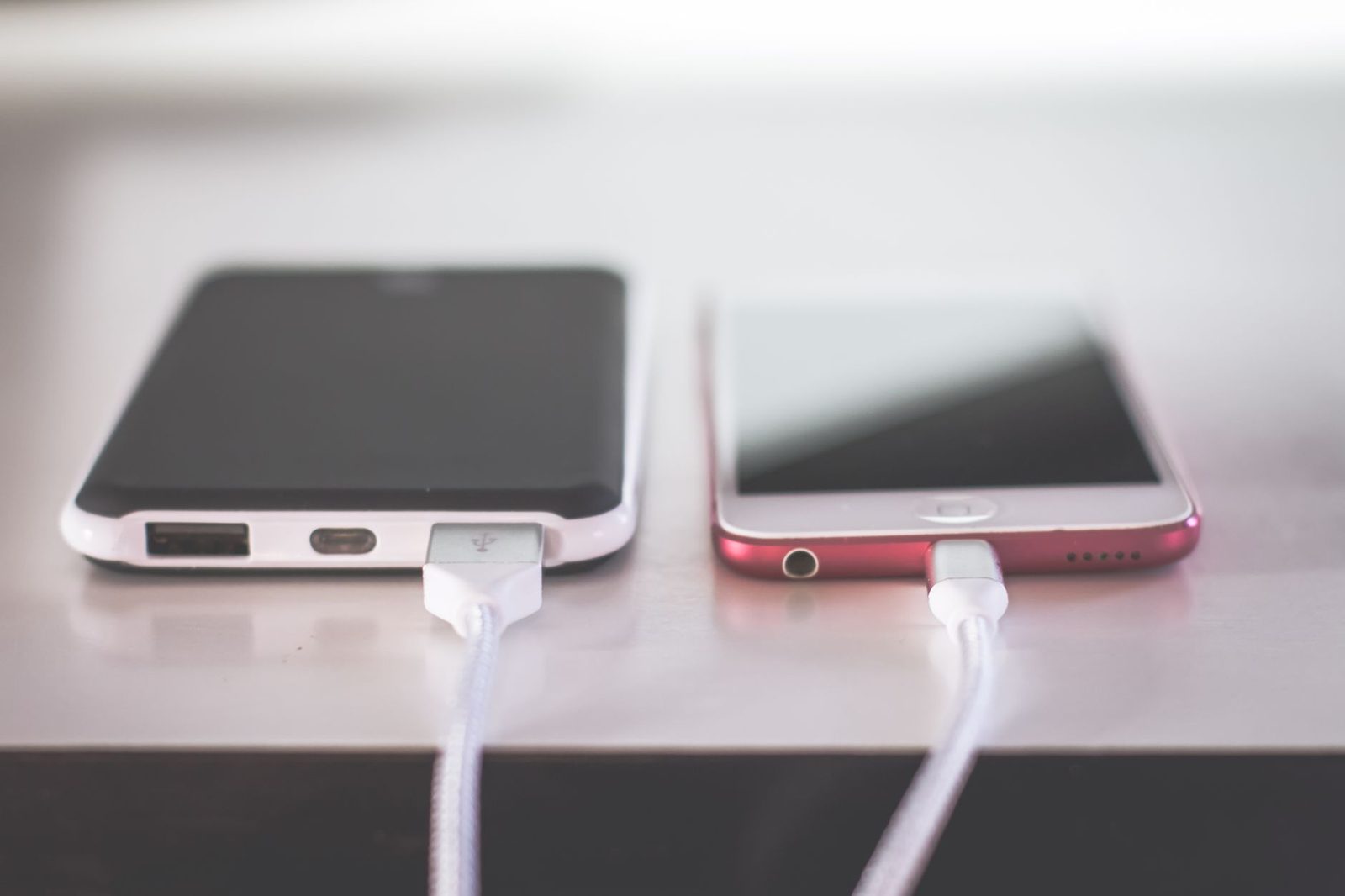
If you regularly run dry by the end of the day, the real fix isn't software. A 10,000 mAh power bank left permanently in your bag, or a short braided USB-C cable tucked into the front pocket of your laptop sleeve, settles the problem once and for all. Batteries whose real capacity has collapsed are easy to spot: on iPhone, Settings → Battery → Battery Health; on Android, charge cycles are visible in the settings of most recent manufacturers.
While you wait for the device to come back to life, and if the message is urgent, switch to the method that requires nothing: a sending website. That's exactly the use case these services exist for, and the one we detail in five everyday situations where a free text saves the day.
And if the phone is still at home or at the office?
In that case, no amount of fiddling will make it appear. You need a channel that starts from the computer.
Option 1: a text-sending website in your browser
This is the most direct route, and it requires neither an installation nor a phone. You enter the recipient's number and your text, and the gateway handles delivery. Two precautions make the difference between a message received and a message lost:
- Write the number in international format.
+33612345678, with no spaces or dashes. That's the E.164 rule, detailed in our guide on how to write a mobile number for a text message. A number typed as "06 12 34 56 78" is often rejected by an online service. - Sign the message. The text won't arrive from your number, but from a service number the recipient doesn't recognise. Without "It's Marc" at the start, your message looks like spam and will be ignored. That's the structural limitation of these services: no conversation thread, no way for the recipient to reply to you.
Think about length too. A free service often limits you to a single segment, i.e. 160 characters — and only 70 if you slip in an emoji or a curly quote, a mechanism explained in why one emoji drops a text down to 70 characters. The site's character counter lets you check before you send.
Option 2: an internet messaging app already open on the computer
If you use WhatsApp Web, Signal Desktop, Telegram Desktop or Messenger and the session is already active on that computer, you just type as usual: these apps work without the phone once linked (WhatsApp since linked devices arrived, Signal and Telegram always have on their desktop versions).
Watch out for the trap: if the session is not yet linked, you'll need to scan a QR code with your phone — and you're back to square one. Which is exactly why it pays to link those sessions on your work computer before you need them.
Option 3: borrow a phone
Low-tech, highly effective, and often faster than everything else. Read out the number and have them send a message starting with your first name. Remember to mention that the reply will come to that number.

What if the phone is broken, stolen or water-damaged?
This is the longest situation to sort out, because it affects the number itself and not just access to the screen.
Prioritise in this order:
- Urgent messages go out through an independent channel (a sending website, a web messaging app already linked, a borrowed phone). Don't spend an hour trying to resurrect the device if someone is waiting on you.
- Check whether only the screen is dead. A phone with a shattered pane but a touch layer that still responds can sometimes be driven with a USB-C keyboard and mouse through an adapter; conversely, a tempered glass screen protector fitted the day you buy the phone prevents most drop-related breakages.
- If it's stolen or lost, the SIM card comes before everything else. Blocking it with your carrier prevents anyone using your number — including to receive bank verification codes. We go through the steps in phone stolen or lost: what to do first.
- Ask for a replacement SIM and, if needed, a stopgap device. A basic big-button phone kept in a drawer, with its spare SIM or yours reinserted, is enormously useful during the two or three days you're waiting — if only to receive the verification texts for your accounts.
One detail many people discover too late: text messages are not "in the cloud" by default. On Android, backing them up depends on Settings → Google → Backup, and on iPhone on Messages in iCloud. If nothing was enabled, a dead device takes your message history with it.
How can you prepare before it happens?
Five minutes now are worth an hour of panic later. Here's the checklist, in order of usefulness:
- Write three numbers down on paper. Partner, parent, close colleague, and possibly your nursery, your doctor, your employer. A pocket notebook slipped into your wallet is enough — it's the only backup that works with the phone off, the battery dead and the Wi-Fi down.
- Link your desktop messaging app today. WhatsApp Web, Signal Desktop or Telegram Desktop on the computer you use most. The link lasts for months.
- Turn on text message backup (see above), so your history outlives the device.
- Bookmark an online sending service in your computer's browser, and test it once, on your own number. A tool you discover in an emergency is a tool you use badly.
- Keep a way to charge at the office. A spare USB-C wall charger left permanently at your desk solves 80% of "flat phone" cases with no other effort.
If your need isn't accidental but recurring — you have to send reminders, confirmations or messages to several people from a computer — this is no longer a workaround. The right methods are the ones described in sending a group text from a PC and scheduling a text for later, along with the consent and timing rules set out by the CNIL (France's data protection authority) for any message sent in a professional capacity.

An important note about emergencies
None of the methods in this article replaces a call to the emergency services. Text-sending websites cannot reach short emergency numbers, and a text sent through a gateway is neither geolocated nor given priority.
In France, a mobile phone with no plan, no credit and even no SIM card can still call 112, the European emergency number. Deaf and hard-of-hearing people can use 114, reachable by text message, video call and chat through the dedicated app. The official list of emergency and helpline numbers is published on service-public.fr.
Frequently asked questions
Can you send a text from a computer with no phone at all?
Yes, with an online sending service or an SMS gateway: the message is injected into the carrier networks without going through a mobile device. The text won't be sent from your number but from a service number, and the recipient usually won't be able to reply to it.
Does Google Messages for web work if my phone is switched off?
No. Google Messages for web is a mirror: the computer displays and controls the phone's app, and the phone has to be switched on and connected to the internet. With the phone off, the session drops and no message can be sent.
Does Phone Link on Windows 11 work without my mobile nearby?
Not without the phone, no. Pairing happens over the internet or via Bluetooth depending on the feature, but the device has to stay switched on and reachable. Physical proximity isn't always required; the phone's availability always is.
Do texts received while my phone was off arrive when I switch it back on?
Yes, in most cases. Carriers hold undelivered texts for a limited retention period — generally from a few hours to several days — then deliver them as soon as the line is active again. After that window, the message is dropped with no notification.
How many characters can I write from a free sending website?
Usually a single segment, i.e. 160 characters in the GSM-7 alphabet. One emoji, one curly quote or one em dash switches the message to UCS-2 and cuts the capacity to 70 characters. Remember to sign your name within those 160 characters.
Updated 11 November 2026. The features and limitations of Google Messages for web, Phone Link and Messages on Mac change from version to version: check the official help pages from Google, Microsoft and Apple before relying on any of them.